Your team’s chat tools quietly become its unofficial knowledge base as the first place people look when they need an answer. The catch: answers buried in chat threads don’t stay findable, so the same questions get asked again and again.
So how do the main tools stack up on what actually matters: integrations, ease of use, AI, and security?
This guide compares nine team communication tools across four categories: chat and messaging, video and meetings, async and knowledge, and all-in-one platforms, so you can match the tool to how your team actually works.
Key takeaways
- Chat and messaging (Slack, Microsoft Teams) suit fast, synchronous back-and-forth.
- Video and meetings (Zoom) cover real-time calls, from one-on-ones to large webinars.
- Async and knowledge (Slite, Twist, Loom) keep decisions written down and findable across time zones.
- All-in-one and deskless platforms (Google Workspace, RingCentral, Connecteam) bundle several channels, including tools for frontline staff.
- The right setup usually layers two or three of these — the goal is fewer places to look, not more apps.
What are team communication tools?
Team communication tools are the apps a team uses to share information and make decisions together through messaging, video calls, and shared documents. The best ones cut down on scattered context and repeated questions by giving a team fewer, clearer places to talk and to record what was decided.
In practice they fall into four categories, and most teams end up combining a couple:
- chat and messaging for quick back-and-forth,
- video and meetings for real-time conversation,
- async and knowledge for decisions that need to stay findable,
- and all-in-one platforms that try to cover several at once.
For the bigger picture, see our team communication guide.
How to choose the best team communication tool
We didn’t rank these tools on feature counts. We weighted what actually determines whether a tool sticks:
- Ease of adoption — will the whole team, not just early adopters, actually use it?
- Integrations — does it connect to the tools you already run?
- Fit for the job — is it built for chat, video, async knowledge, or all of the above?
- Security and admin controls — can you trust it with sensitive information?
- Total cost — including the hidden cost of switching between too many apps.
That last point comes from our own experience. We run a remote-first stack and have changed tools when adoption lagged.
Our project management moved from Trello to ClickUp to Linear before it stuck.
The lesson: adoption beats feature lists every time. We specialize rather than consolidate, that’s why we use Slite for docs and decisions, Linear for planning and we last reviewed every pick in this guide in 2026.
Our top team communication software picks
| Tool | Best for | Free plan / trial | Starting price | Standout feature |
|---|---|---|---|---|
| Slite | Teams keeping shared knowledge current | 14-day free trial | $10 / user / mo | Self-maintaining knowledge base with Slite Agent |
| Twist | Calm, thread-based async chat | Free-forever plan | $6 / user / mo | Notification control with a time-off setting |
| Loom | Async video updates and walkthroughs | Free Starter plan | ~$15 / creator / mo | One-click screen and camera recording |
| Slack | Fast synchronous team chat | Free plan | $7.25 / user / mo | Channels and Slack Connect |
| Microsoft Teams | Chat for Microsoft 365 teams | Free plan | $4 / user / mo (Essentials) | Deep Microsoft 365 integration |
| Zoom | Video meetings of any size | Free 40-min plan | ~$13.33 / user / mo | Large Meeting scaling to 1,000 |
| Google Workspace | An all-in-one Google suite | 14-day trial | $7 / user / mo | Gmail, Meet, and Docs in one suite |
| RingCentral | Business comms plus contact center | Free trial | $20 / user / mo (RingEX Core) | Messaging, video, and phone in one |
| Connecteam | Deskless and frontline teams | Free for up to 10 users | ~$29 / mo (first 30 users) | Mobile-first chat, scheduling, and tasks |
For many companies the knowledge nowadays is scattered across Slack, a wiki, and Google Docs with no single source of truth — so no one can say where the current answer lived.
The tools below try to solve that issue and help teams collaborate and share knowledge.
1. Slite
We build Slite, so we’re biased. We think about team communication a little differently: Slite is a knowledge base where you capture decisions, processes, and answers in channels and documents, then keep them current as your team and tools change.
As of June 2026 it’s self-maintaining. Slite Agent watches what you share in your chat and messaging tools as well as read your video call transcripts and meeting notes to flags docs that have drifted from reality, and proposes fixes for a human to approve.
This way you can reduce the number of questions asked over Slack, and improve knowledge transfer.
Best for
Teams that want their shared knowledge to stay trustworthy as they grow. Whether you’re building a wiki or knowledge base, an employee handbook, or an onboarding process, Slite keeps it organized, searchable, and current.
Features
- Fast and flexible document composer
- Smart tables, mentions, galleries, files, embeds, and code snippets inside any doc, plus file sharing
- A wide variety of templates to help you get started
- Clear, channel-based organization
- AI search with Ask: natural-language answers with citations from your docs
- Slack bot: cited answers from your knowledge base without leaving your Slack threads
- MCP and API access on every plan: connect your knowledge base to Claude, Cursor, and other AI tools
- Ready-to-use integrations across 20+ tools, including Slack, GitHub, Google Drive, Linear, and Jira
- Doc verification keeps every answer trustworthy as your team changes
- Slite Agent keeps your knowledge base current across 20+ connected tools, with humans approving every change
Pros
- Ideal for remote teams
- Straightforward, easy-to-use interface
- Extremely easy to adopt for the whole team
- Free 14-day trial, no credit card required
- Excellent for asynchronous communication
- Comments, mentions, and async discussion in every doc
- Fewer repeat questions, because answers stay curren
Cons
- Best suited for private knowledge in an internal wiki, rather than public-facing content.
Pricing
Slite offers a 14-day free trial with no credit card required. Just sign up for an account and start documenting right away.
Our paid plans start at $10 per user per month on Basic. Pro is $20 and adds Slite Agent and cross-tool search. Enterprise plans are available on consultation.
2. Twist
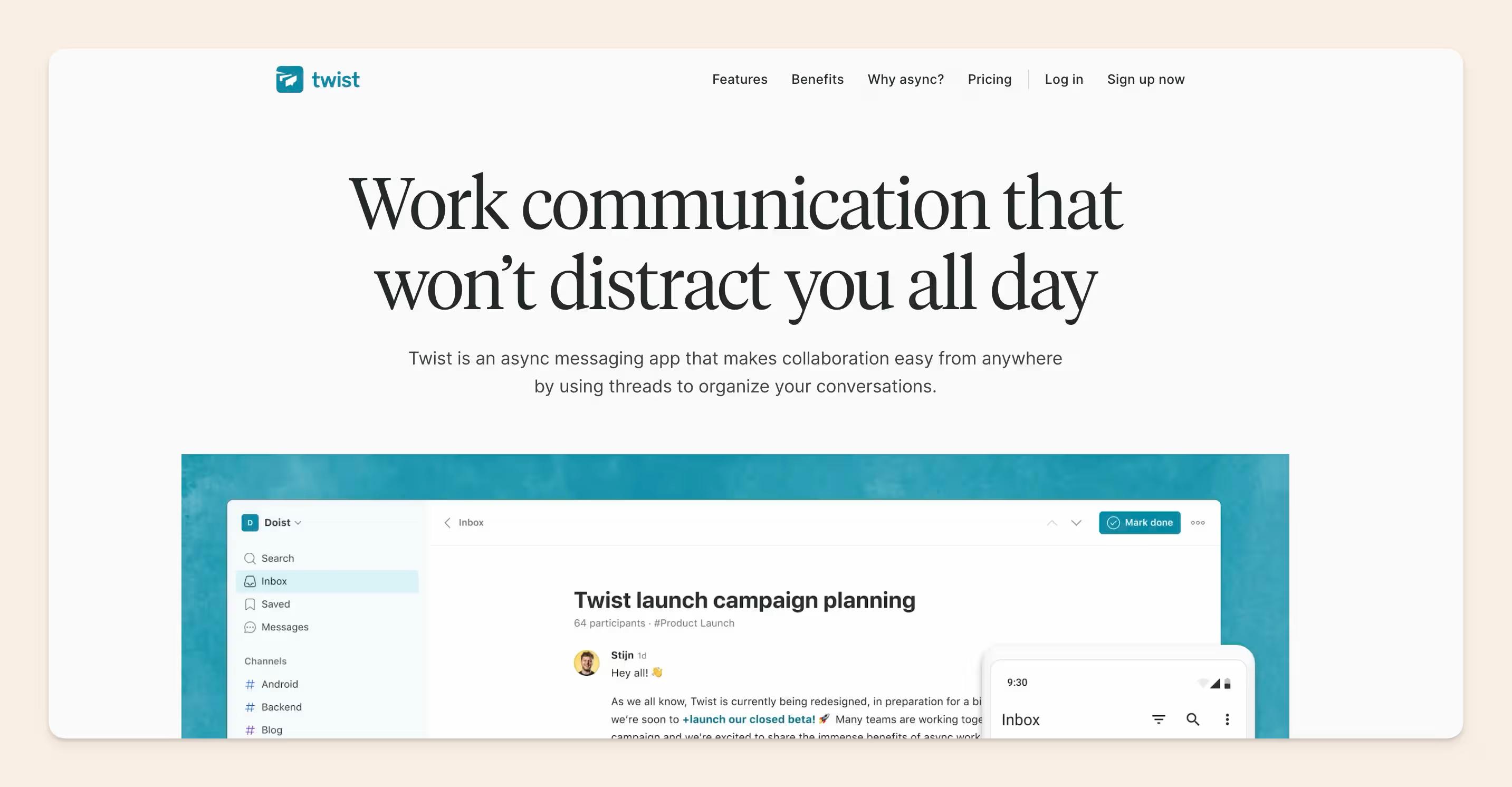
Twist is one of Slack’s calmer competitors. Instead of a real-time, always-on feed, it organizes conversation into topic-based threads built for asynchronous communication, so teams that dislike notification overload can think before they reply.
Best for
Teams that want structured, low-interruption discussion — and Slack users looking for a quieter, more asynchronous alternative.
Features
- Team chats organized into topic-based threads
- Threads grouped into channels
- Direct messaging for one-on-one conversations
- Powerful search across threads
- Full control over notifications, including a time-off setting
- Integrations with tools like Asana, Calendly, GitHub, Trello, and Zoom
Pros
- Simple, easy-to-use interface
- Built for asynchronous work
- Limited interruptions and notifications
- Can invite external parties into channels
Cons
- Fewer real-time chat options
- Fewer features than larger competitors
- Some features are still maturing
- Needs integrations to make audio and video calls
Pricing
Twist has a free-forever plan with limited features. Its Unlimited plan is $6 per user per month, billed annually.
3. Loom
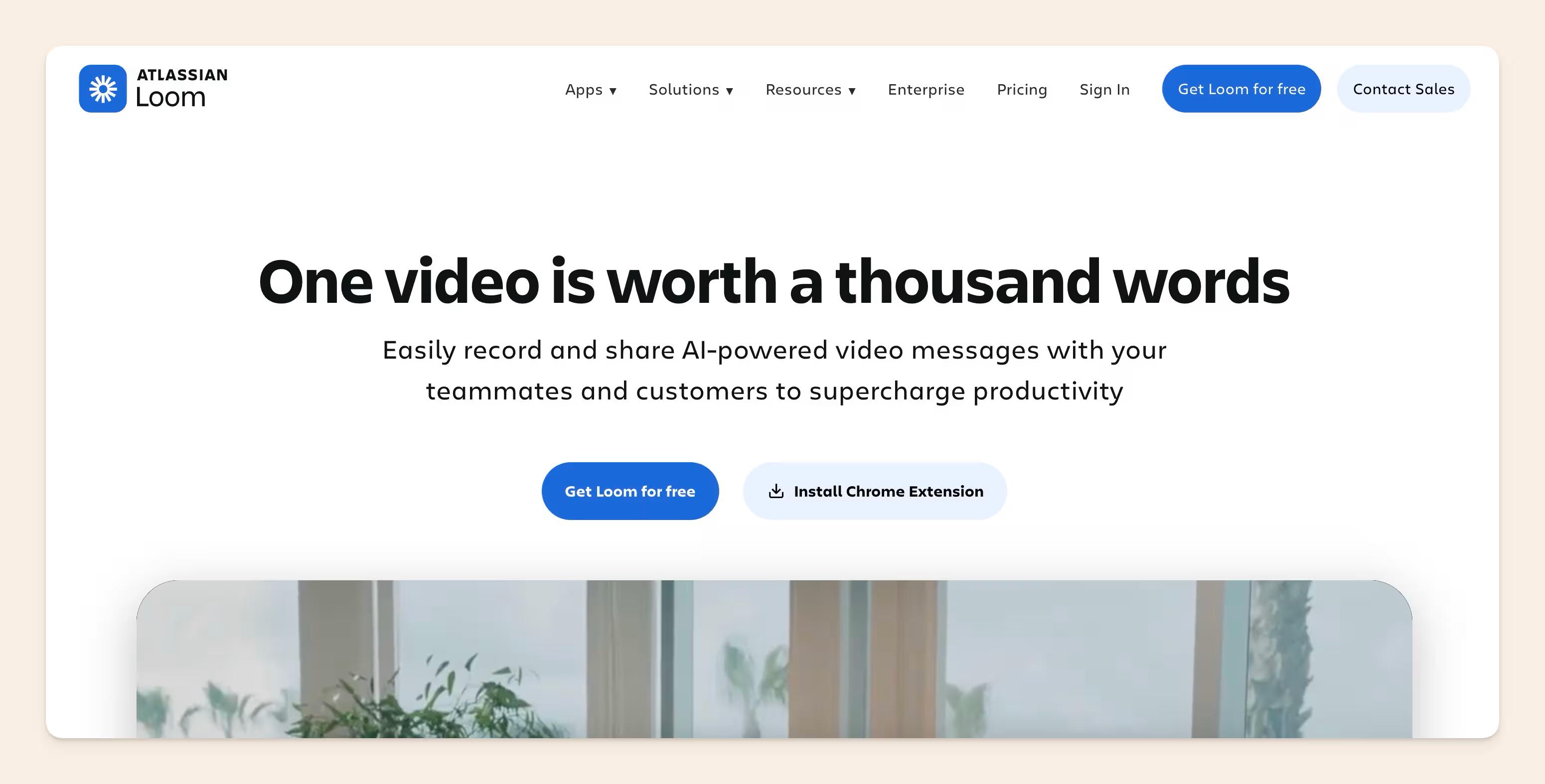
Loom fills the gap between a written update and a live meeting: you record your screen and camera, and teammates watch on their own time. It’s the async-video piece most communication stacks are missing.
Best for
Sharing walkthroughs, feedback, and updates that would otherwise become a meeting, especially across time zones.
Features
- One-click screen and camera recording
- Instant shareable links, with no file management
- Timestamped comments and emoji reactions on the video
- Transcripts and AI-generated summaries, titles, and chapters
- Viewer engagement insights
- Integrations with Slack, and embeds into docs and tools like Slite
Pros
- Cuts down on live meetings and long written threads
- Very little learning curve
- Good for onboarding and recurring explainers
- Works across desktop and browser
Cons
- Built for one-way video, not live conversation
- Storage and advanced features sit behind paid plans
Pricing
Loom, now part of Atlassian, offers a free Starter plan with limits on video length and count. Its Business plan starts around $15 per creator per month (billed annually), with a higher AI tier above it.
Chat and messaging
For quick, synchronous back-and-forth, these three are the defaults most teams reach for first.
4. Slack
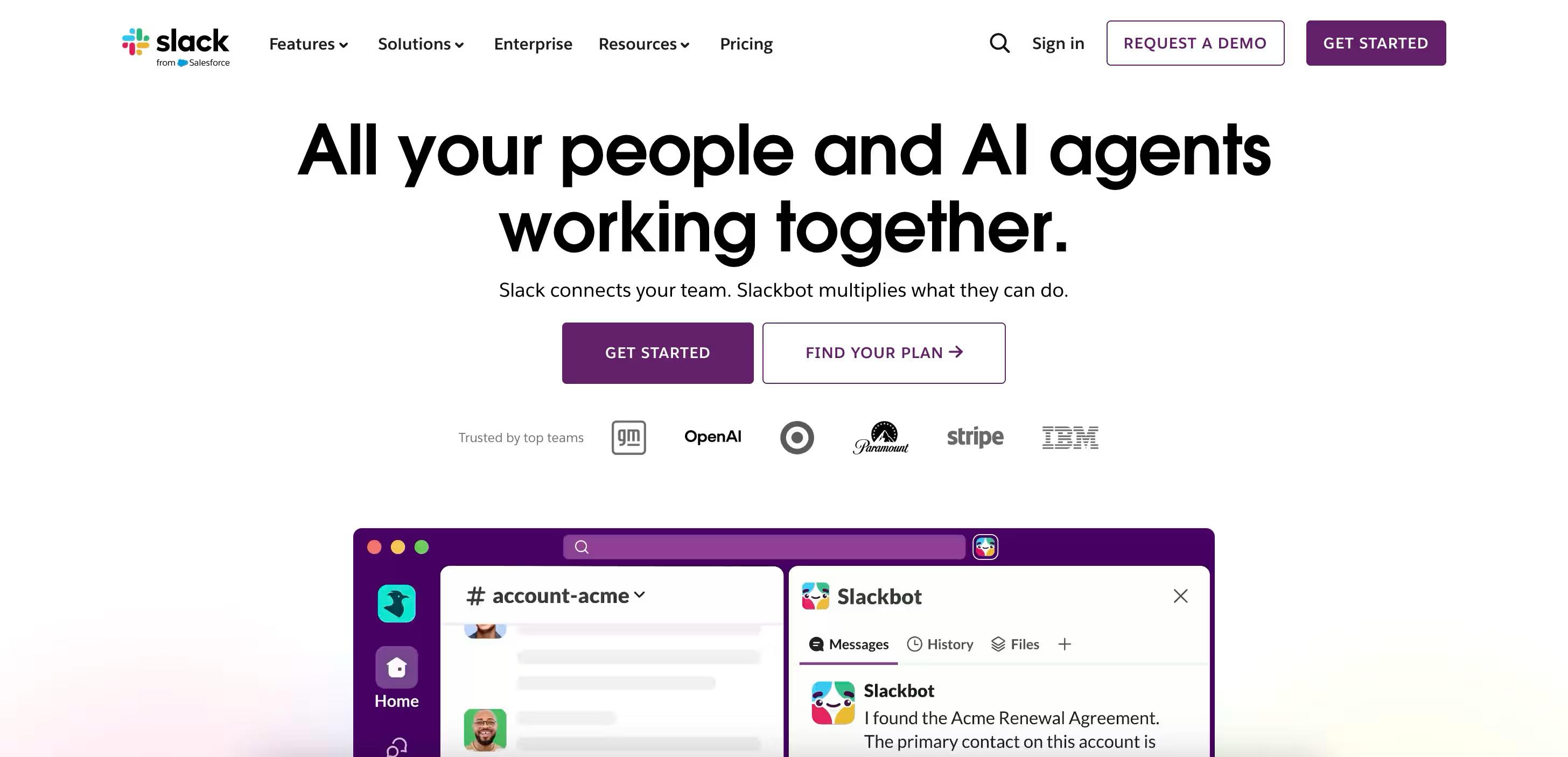
Slack is one of the most popular chat apps for teams. It’s built for brief, synchronous professional messaging and it’s your email inbox’s best friend.
Best for
Fast, synchronous messaging with colleagues and outside collaborators. Slack suits teams chasing inbox zero, with a social UX that invites casual conversation.
Features
- Tidy, channel-based organization
- Slack Connect for chatting with other teams and companies
- Easy-to-use messaging
- Voice and video calls
- Strong accessibility features
- Integrations with tools like Zoom, Google Drive, and Dropbox
Pros
- Easy for every team member to use
- Highly customizable to your needs
- Integrates with lots of other popular communication tools
- Works on the go across devices
Cons
- Not ideal for meetings or conferences, video is limited and call quality can be spotty, so you’ll often add a video tool
- Slack can be too convenient, to the point of distraction
- Conversations get lost in busy channels before you can follow up
Pricing
Slack has a free plan you can use to try it out.
Its paid plans:
- Pro is $7.25 per user per month billed annually (or $8.75 monthly),
- Business+ is $12.50 billed annually (or $15 monthly).
They’ve also got custom Enterprise plans, but you’ll have to contact their sales team for a quote.
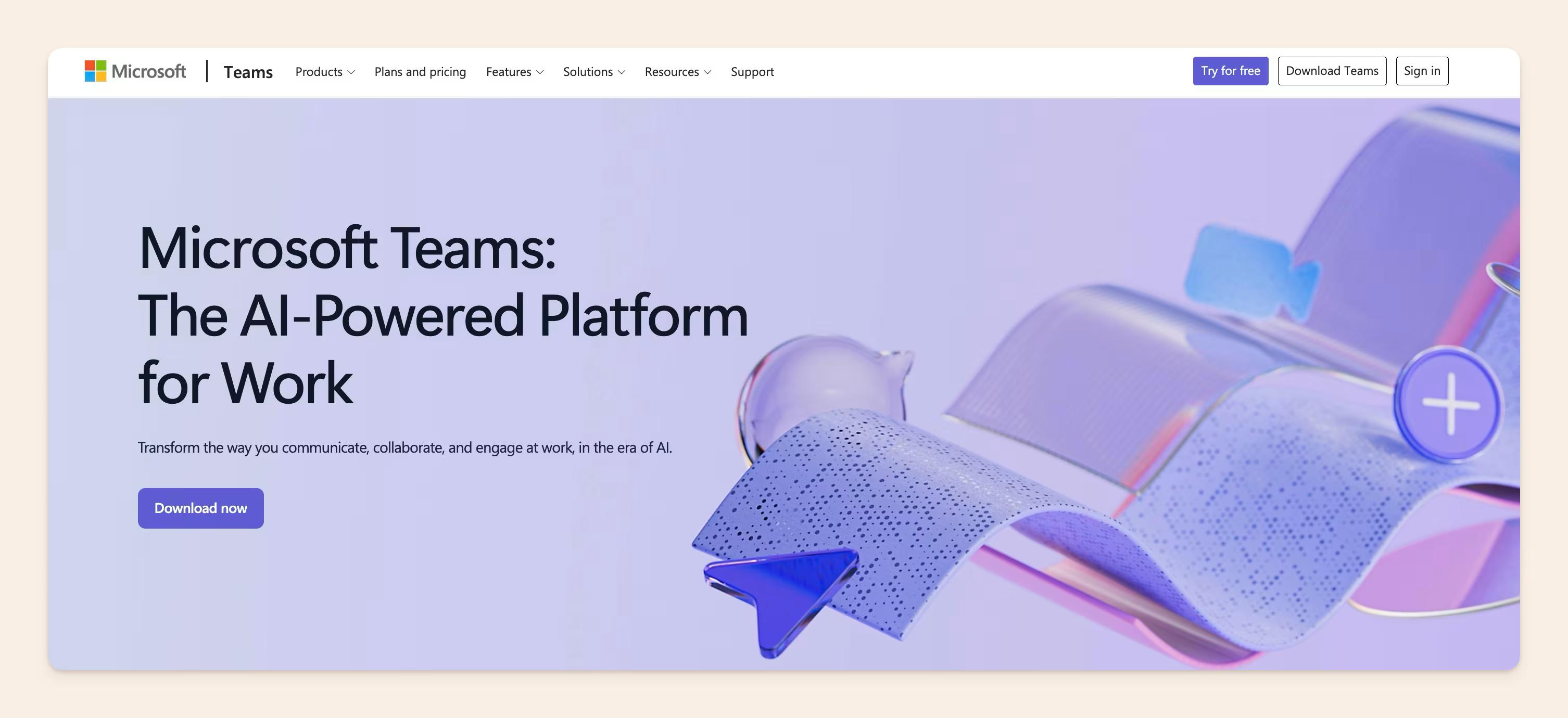
5. Microsoft Teams
Microsoft Teams is a chat-centered communication tool. It’s especially popular with teams already in the Microsoft ecosystem, where its compatibility with tools like PowerPoint and Word comes in handy.
Best for
Group communication — chats, calls, and video — for organizations already standardized on Microsoft 365.
Features
- Instant messaging
- Individual and group chat
- Team channels for collaboration
- Video calls for up to 1,000 people in a standard meeting (up to 10,000 in view-only town halls)
- Audio calls with group calling, cloud voicemail, and call transfers
- Real-time document collaboration
Pros
- Easy to customize
- Good for remote teams
- Works across devices and platforms
- Good value if you already pay for Microsoft 365
- Lots of integrations
- Frequent improvements
Cons
- Learning curve; the interface can feel cluttered
- Can run slowly at times
- Camera quality can be inconsistent
Pricing
You can use Microsoft Teams free for as long as you want. Paid plans start with Teams Essentials at $4 per user per month, or Teams comes bundled into Microsoft 365 Business plans (Business Basic $7, Business Standard with Copilot $23.50). The higher plans include the full suite of Microsoft apps like Word, Excel, and PowerPoint.
Video and meetings
When you need to be face to face in real time, a dedicated video tool still wins.
6. Zoom
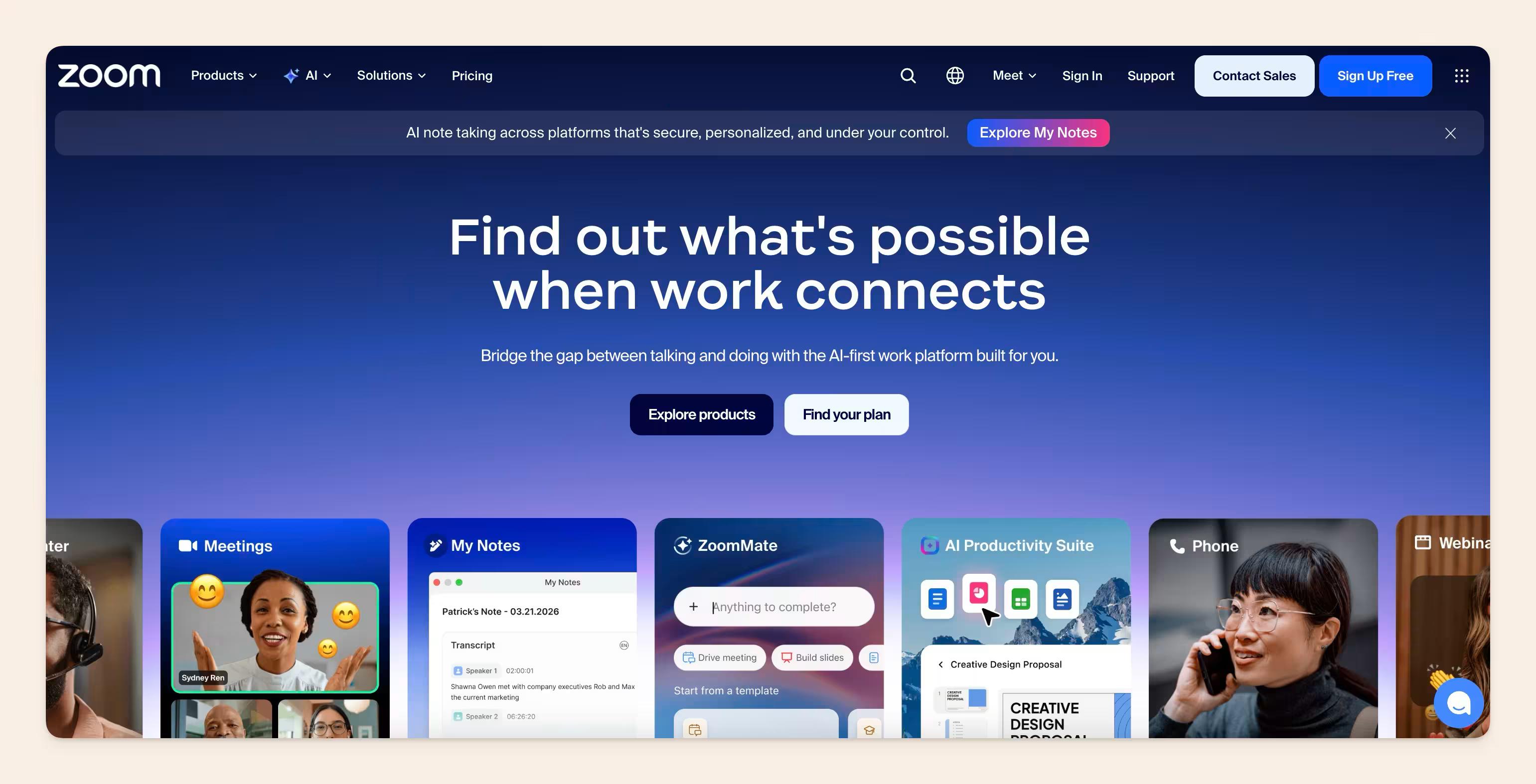
You’re probably already familiar with Zoom, one of the most popular video conferencing tools around. Video calling is now a core part of how most businesses run, and Zoom handles meetings of every size.
Best for
Video meetings of any size — internal syncs, client calls, webinars, and large conferences.
Features
- HD video and audio
- Up to 1,000 participants with the Large Meeting add-on (base tiers run 100–500), with 49 videos on screen
- Meeting recording
- Screen sharing
- Easy calendar invites and integrations
- One-on-one, group, and large-group video
- Built-in collaboration tools
Pros
- Very little onboarding — start right away
- Join from any device, anywhere
- Security with encryption, passwords, and waiting rooms
- Engagement features like breakout rooms, chat, reactions, and polls
Cons
- Group calls of three or more are capped at 40 minutes on the free plan
- The mobile app has more limited features than the desktop app
- The chat feature is fairly limited
Pricing
Zoom’s free Basic plan caps every meeting at 40 minutes, including one-on-ones, for up to 100 participants. The old unlimited one-on-one allowance ended in July 2022.
For larger meetings, paid plans are roughly $13.33 per user per month (about $159.96 a year) for Pro and $18.33 per user per month (about $219.96 a year) for Business, billed annually.
7. Google Workspace
Google Workspace is an umbrella of familiar, well-tested communication tools that help all kinds of teams work together.
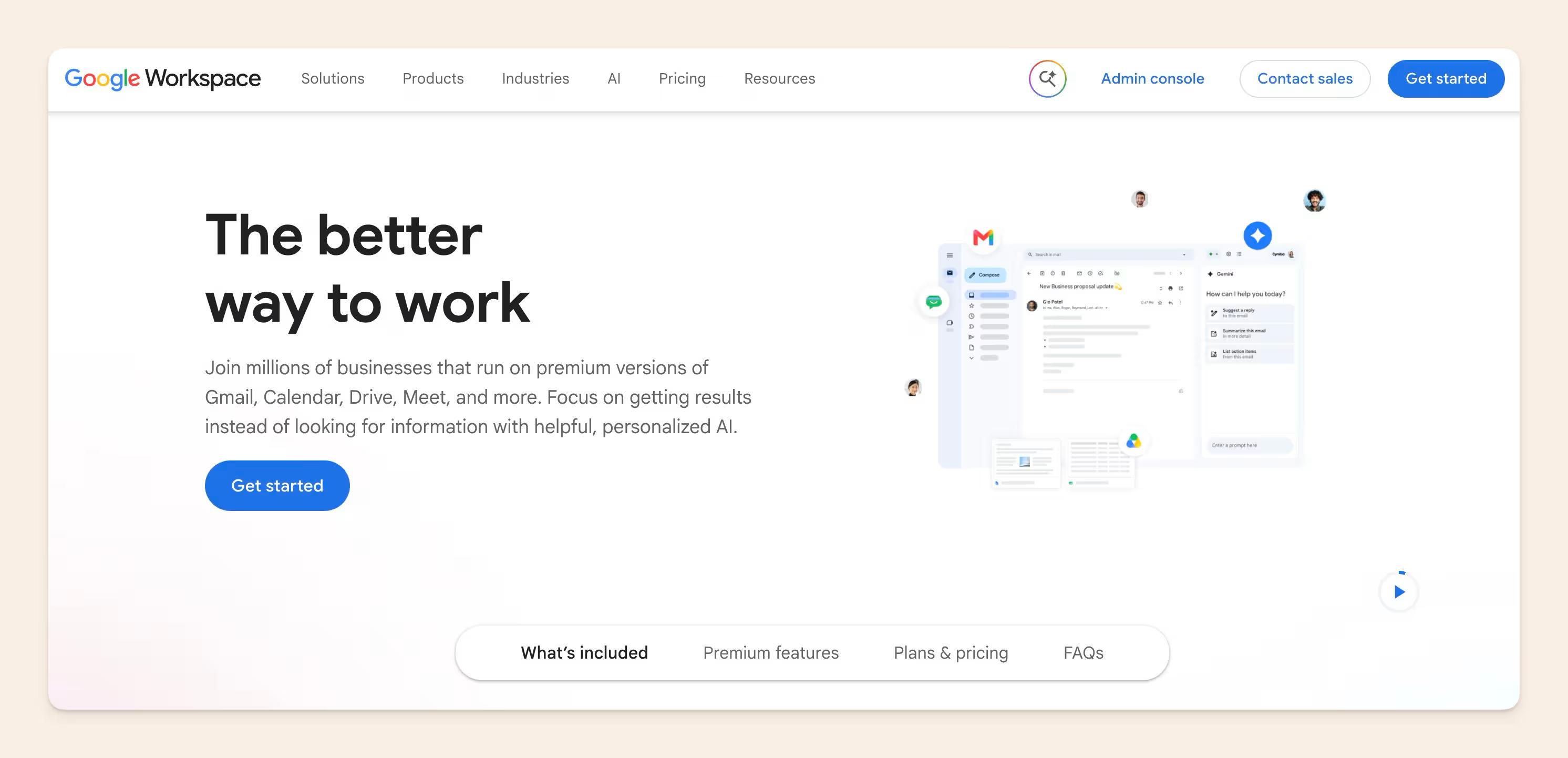
Here are the tools we’re reviewing under Google Workspace:
- Gmail
- Google Calendar
- Google Drive
- Google Meet
- Google Docs
Best for
Teams that want a catch-all suite for communication and collaboration, especially if they already live in Google tools.
Features
- Gmail: email with generous free storage, strong search, and a simple interface.
- Google Calendar: an interactive calendar that integrates with your browser, email, and other apps.
- Google Drive: cloud storage for files and documents, with 15GB free.
- Google Meet: video conferencing for everything from formal meetings to casual chats.
- Google Docs: collaborate on documents, leave feedback, and share files, with support for internal communication.
Pros
- Almost everyone already knows Google Workspace, so onboarding is minimal
- A whole suite of communication tools in one place
- Great for remote or in-person teams of any size
- Useful for internal or external work
- Easy to use and implement
Cons
- With so many tools, quality varies between them
- Switching between multiple accounts can be awkward
- Some layouts and features feel clunky
- Google Meet isn’t the strongest voice and video option
- Limited customer support
Pricing
You can use the individual Google Workspace tools free with limited features, or try a paid plan free for 14 days.
Paid plans are Business Starter $7, Business Standard $14, and Business Plus $22 per user per month billed annually, with Gemini AI now bundled into every tier, though the Starter tier’s Gemini features are more limited than those on Standard and Plus. Enterprise plans are available through sales.
8. RingCentral
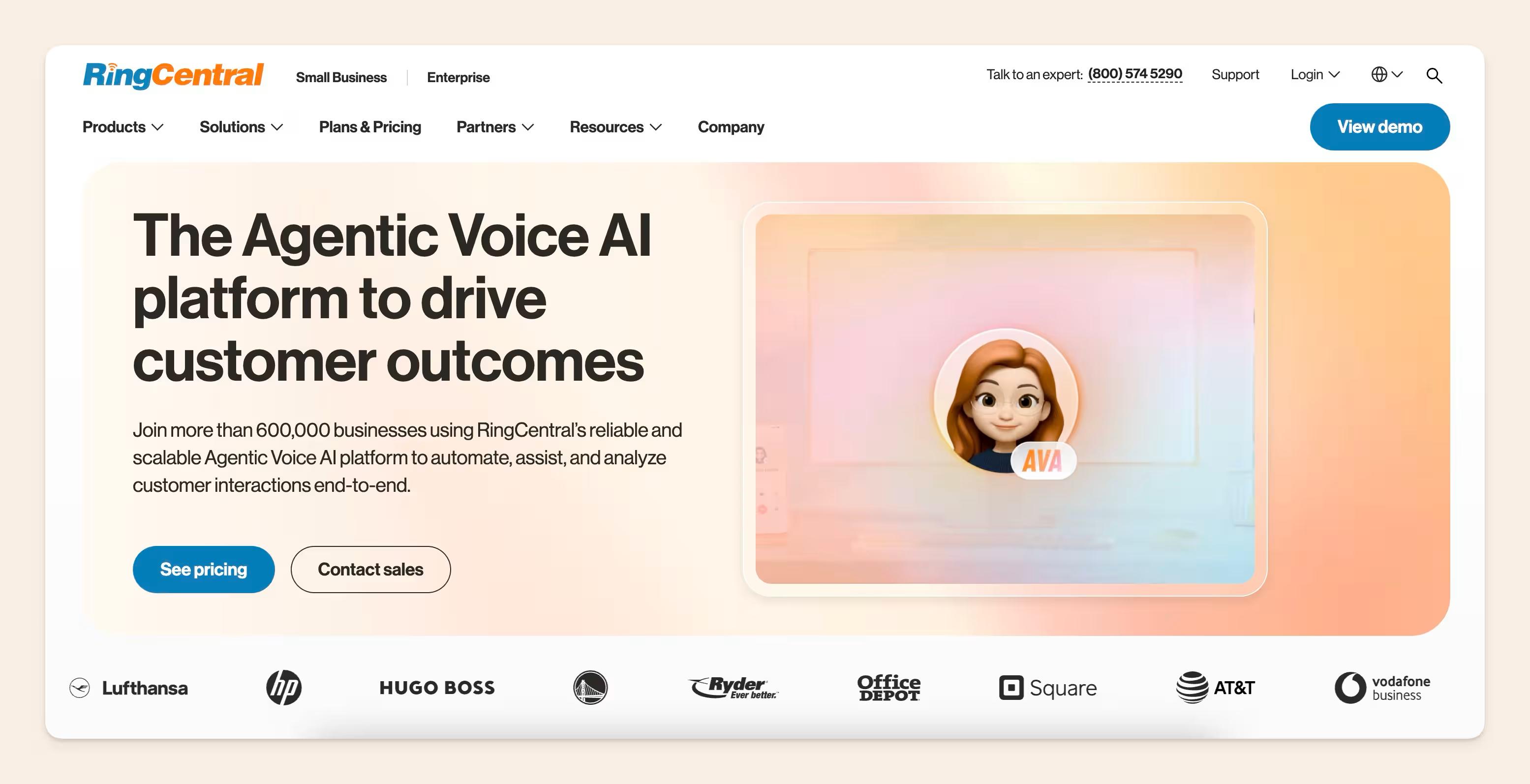
RingCentral brings messaging, video, and phone together in one place, and pairs internal team communication with customer-facing service tools. It aims to centralize everything a business needs to talk — inside and out.
Best for
Teams that want business communication and a customer-service layer in the same platform.
Features
RingCentral is organized into two main products:
- RingEX (formerly RingCentral MVP): messaging, video, and phone in one workspace, with RingSense AI.
- RingCX: the contact-center product for customer service, with omnichannel support.
Pros
- Live-chat and phone customer support
- Simple to implement and use
- Cloud-based
- Good voice and video quality
- Works across devices, platforms, and browsers
- Reliable and consistent
Cons
- Group chat and group calling could be stronger
- Some bugs to iron out
- Plan structure can be complex
Pricing
RingEX has three tiers, billed annually: Core $20, Advanced $25, and Ultra $35 per user per month (monthly: Core $30, Advanced $35, Ultra $45).
RingCX contact-center pricing is quote-based — contact their sales team for details.
9. Connecteam
Connecteam is built for the teams most communication tools forget: deskless and frontline staff who don’t sit at a computer. It’s mobile-first, bundling chat, scheduling, and task management for shift-based workforces.
Best for
Deskless and frontline teams — retail, hospitality, field service, and shift work — that need to reach staff on their phones.
Features
- Mobile-first team chat with read receipts
- Employee scheduling and shift management
- Task management and checklists
- A company knowledge base and updates feed
- Time tracking with GPS for on-site teams
Pros
- Designed for staff without a desk or company email
- One app for chat, schedules, and tasks
- Quick to roll out to a mobile workforce
- Free plan for small teams
Cons
- Overkill for fully office-based teams
- The deep feature set takes some setup
Pricing
Connecteam has a free Small Business plan for up to 10 users. Paid plans start around $29 per month for the first 30 users (billed annually), then a small per-user fee above that. Note that pricing is per hub — Operations, Communications, and HR and Skills are billed separately, so covering more than one multiplies the cost.
How these tools fit together
Most teams don’t pick one tool, rather they layer a few. The trap is layering so many that no one remembers where anything lives.
When a decision could be in Slack, email, a doc, or a call recording, people stop trusting any of them.
A workable stack usually pairs:
- a chat tool for quick back-and-forth,
- a video tool for real-time conversation,
- and an async knowledge layer where decisions actually get written down and stay findable.
Chat and video alone don’t carry meeting context forward, because once the call ends, the takeaways live in someone’s head.
Tools like Grain clip highlights from your calls and push them into your docs, so what was decided actually sticks.
Our own rule is to specialize, not consolidate: use the best tool for each job and connect them, rather than forcing one app to do everything.
Keep your team’s conversations searchable and in one place
The hardest part of team communication usually is finding the information that was discussed or shared again three weeks later.
In a busy chat tool, decisions get made in threads and DMs and then scroll out of reach within days.
Most tools have search, but it pulls only the one message that you can find based on the keyword - it’s not always possible to give it a natural language query and get entire discussions synthesized in one simple answer.
But stacking enterprise search on top of it helps you extract meaningful and fast answers, which helps reduce excess questions and bothering other team members.
Additionally, you want to pair your chat tool with a knowledge layer where decisions get written down once, updated and findable, in a self-maintaining knowledge base.
Structured, searchable docs beat an endless message feed here: the answer sits in one place instead of being pieced back together from six threads.
That is the difference between a team that answers the same question twice and one that answers it once.
The bottom line
There’s no single best team communication tool as the right setup depends on how your team actually works.
Most teams land on two or three:
- a chat tool for quick back-and-forth,
- a video tool for real-time conversation,
- and an async knowledge layer where decisions get written down and stay findable.
Match each job to the tool built for it, connect them, and resist making one app do everything.
Chat handles the fast stuff and video handles the real-time stuff, but neither keeps a record your team can trust six months later.
That’s the gap Slite fills as a durable knowledge layer where decisions, processes, and answers stay current instead of scrolling out of sight, which is working asynchronously done right.
Start a free 14-day trial and see how Slite keeps your team’s knowledge current.
FAQ
What’s the best free team communication tool?
For everyday chat, Slack’s free plan covers most small teams, and Google Chat is a solid free alternative if you want something like Microsoft Teams. Watch the limits, though — Slack’s free plan hides messages past 90 days. For free async video, Loom’s Starter plan is a strong pick, and Slite offers a free 14-day trial for teams that need a shared knowledge base.
What’s a good free alternative to Microsoft Teams?
Slack and Google Chat (part of Google Workspace) are the closest free chat alternatives. For teams that want calmer, thread-based discussion, Twist’s free plan is worth a look.
Which tools do remote and distributed teams use?
Remote teams tend to combine a chat tool for quick back-and-forth, a video tool for real-time conversation, and an async knowledge base so decisions stay findable across time zones. The mix matters more than any single app.
What are the best communication tools for frontline or deskless teams?
Chat-first tools like Slack and Microsoft Teams assume everyone has a desk and a company email, which leaves out frontline, field, and production staff. Mobile-first platforms built for deskless work, like Connecteam, reach those teams with scheduling, updates, and messaging in one app. See our internal communication tools guide for more.
Can one tool cover chat, meetings, and async knowledge?
All-in-one suites like Google Workspace and RingCentral come close, but most teams still layer a dedicated tool for at least one job. Pairing a chat app with an async knowledge layer usually beats stretching a single tool across everything.